
Part 1 of 4
doxx.net workshop
Welcome to the doxx.net workshop. With your new doxx.net mesh private server, build a cool application or website using Claude Code that can only be seen by other doxx.net users. The server is an MPS (Mesh Private Server): a small Debian server that runs on your Mac and is connected to your private mesh network. You decide who can access what you put on it.
- Date
- 12 Nov 2026
- Starts
- 7:15pm
- Ends
- 8:25pm
Workshop Agenda
-
Start here · You're here
Sign up and install
On your computer, sign up for doxx.net with the workshop sign-up link and install the app. You get a 90-day free trial. It's step 1 in Setup.
-
Then
Connect
Connect to doxx.net in the app. You need to stay connected for the rest of the workshop.
-
About 10 minutes
Set up your MPS
Create your MPS. Then, if you want, paste one prompt into Claude Code and it sets up a placeholder site for you.
-
The rest of the 70 minutes
The challenge
Build something to share only with people on your private network. Claude builds and publishes it on your MPS.
-
By 8:25pm
Submit your build
Send in your site with the submission form.
-
About 20 minutes
Live demos
Show us what you built, who it's for and why you chose to keep it private.
-
At the end
Win a Mac mini
Submitting your build enters you in the Mac mini raffle.
The challenge
- What you build
- Build something you'd want to share only with people on your private network, and host it on your own device.
- Time
- 70 minutes in total, including sign-up and setup
- Agenda
- Download doxx.net. Install your MPS. Build. Submit. Demo.
- Prize
- Entry to Mac Mini Raffle
What you need
Tick each one off. Your ticks stay in this browser.
Stay safe
- Your token and your MPS's root password go only into Terminal. Never paste them into the chat with Claude.
- Pick option 2 when Claude asks who can open your site. Option 2 means every doxx.net user can open it, including people you don't know, and nobody outside doxx.net can.
- A private server doesn't make every app on it private. Check who can open your site before you put real information on it.
- Keep your Mac plugged in. Your site only runs while your Mac is awake, connected to doxx.net and running the app.
Part 2 of 4
Set up your MPS
Create your doxx.net account, configure your MPS in the doxx.net app and create an agent token. Then, if you want, paste one prompt into Claude Code and it sets up a placeholder site for you.
Do the open step, then press Done, next step. Your progress stays in this browser.
Sign up for doxx.net
-
Do this on your computer, not on your phone. Already signed up and connected? Press Done.
Open the workshop sign-up link:
Sign-up link · 90-day free trial share.doxx.net/i/245R819NK3Sign up there. The link gives you a 90-day free trial.
Install the doxx.net app on your Mac, then sign in and connect.
You can add the app to your phone later.
Create your MPS
-
You'll need it in step 7. Open it now so it's ready. Pick one way.
In the Claude app
-
At the top of the sidebar, click the </> icon, then New.
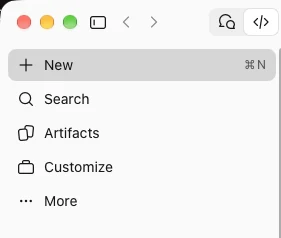
-
Click Choose a folder to work in. In the window that opens, go to your home folder, click New Folder, name it
my-siteand open it.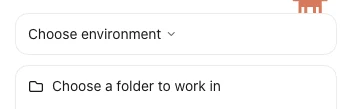
In Terminal
This only works if Claude Code is already installed in your Terminal. If it isn't, use the Claude app above.
Open Terminal: press Cmd+Space, type
Terminaland press Return.-
Paste this and press Return.
mkdir -p ~/my-site && cd ~/my-site && claude
If Claude asks whether you trust this folder, choose Yes.
Why?
It makes a folder for your site and starts Claude inside it. Your site's files live there.
-
-
-
In the app, open Account, then Settings, and click My Domains (under DNS and Domains).
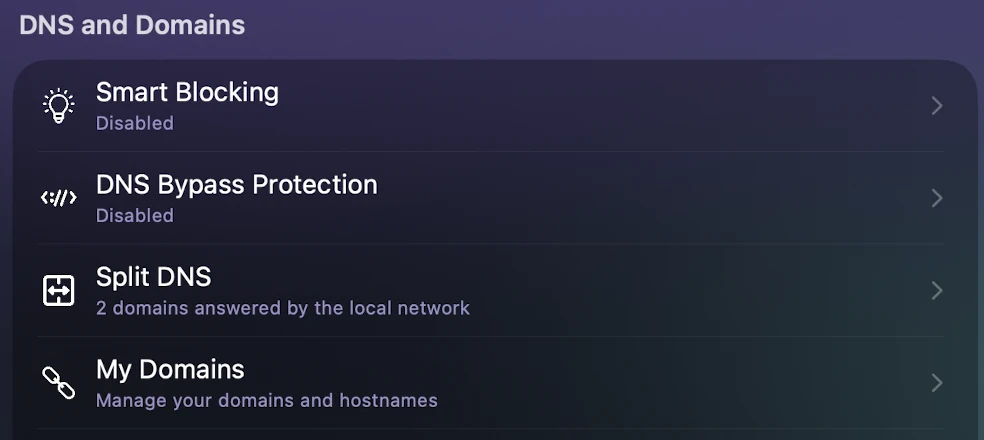
-
If Your Domains is empty, click Register New Domain and create one. If you already have one, you're done.
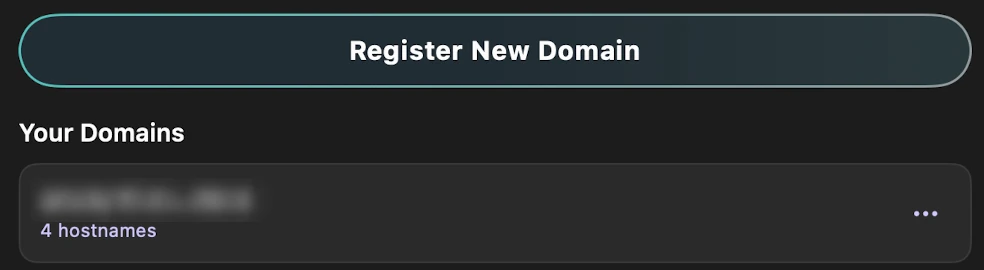
Your domains are listed under the button.
Why?
Your site's address is built from one of your doxx.net domains.
-
-
-
In the app, go to Devices. Under this Mac, click Add MPS to … (it ends with your Mac's name).
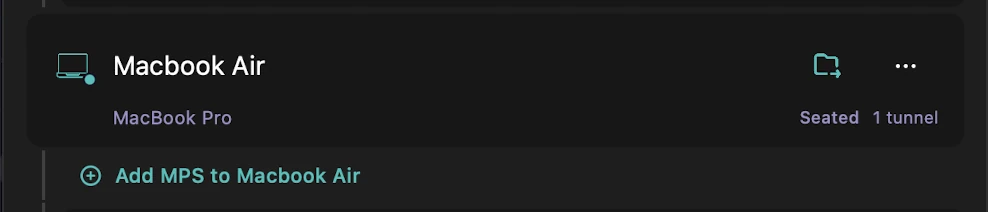
-
Type a short name, such as
mps, and pick one of your domains next to it. Leave Memory and Disk as they are and click Add. Don't rename the MPS later.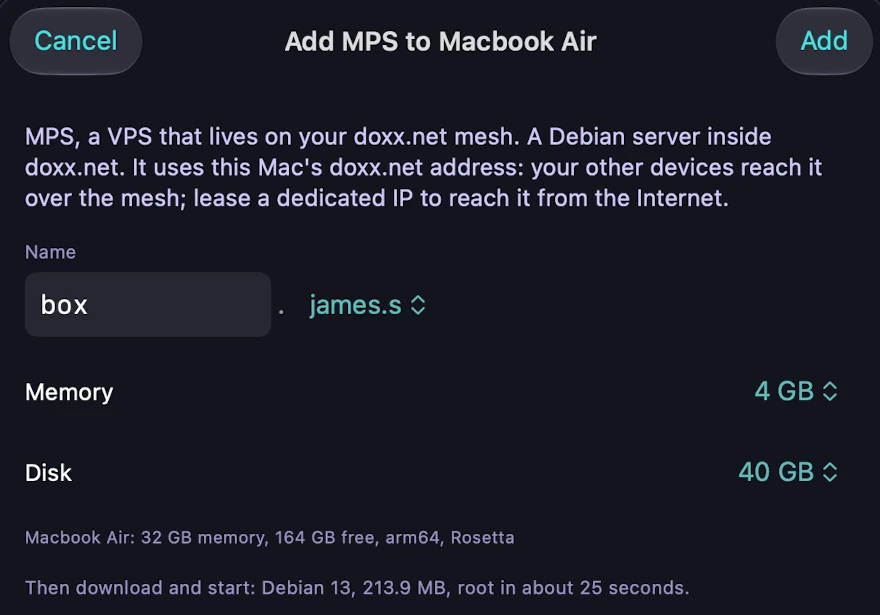
Its full name is the two together, for example
mps.example.sol. You'll send it to Claude in step 8.
Debian is downloading. The first start takes a few minutes. Don't wait for it: go on to step 5 now.
-
-
-
In the portal, a0x13.doxx.net, go to AccountAuth Tokens and click New Token. Give it the Network Admin role and a 7-day expiry. Leave the portal open: you copy the token in a moment.
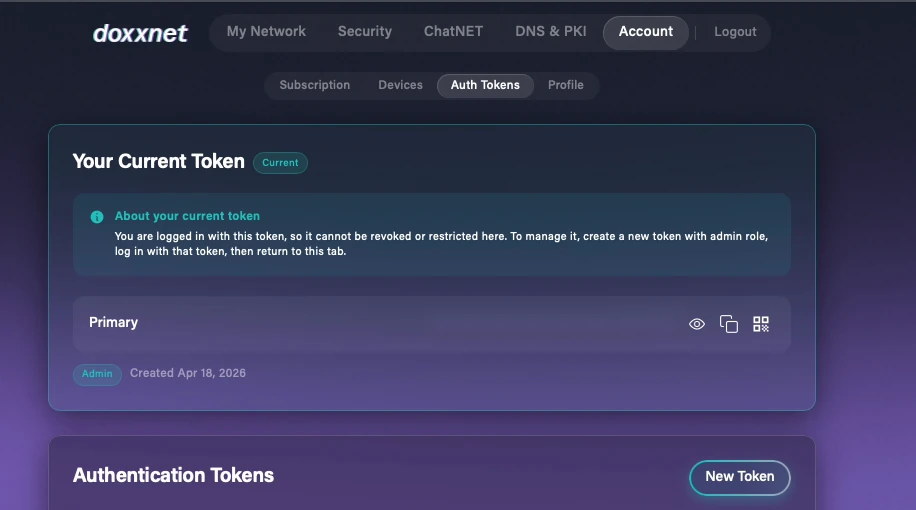
Open Terminal: press Cmd+Space, type
Terminaland press Return. If Terminal is already open, press Cmd+N for a new window.-
Copy this command, paste it into Terminal and press Return. It answers
Paste token, then press Return:and waits.mkdir -p ~/.config/doxx && F=~/.config/doxx/mps-setup-token && if [ -e "$F" ]; then echo "Already exists: $F"; else bash -c 'umask 077; printf "Paste token, then press Return: "; t=; while IFS= read -rsn1 c && [ -n "$c" ]; do case "$c" in [[:space:][:cntrl:]]) continue;; esac; t="$t$c"; printf "*"; done; echo; if [ -n "$t" ]; then printf "%s" "$t" > "$1"; echo "saved (${#t} characters)"; else echo "Nothing was pasted. Run the command again."; fi' _ "$F"; fiIf it says "Already exists", a token was saved earlier. Skip the next action and say so when you answer Claude's question in step 8.
-
Go back to the portal and copy the token. Paste it into Terminal and press Return. Each character shows as a
*, so you can see that it pasted without showing the token.You should see
savedand the number of characters
Never paste the token into the chat with Claude. The command keeps it in a private file on your Mac, and Claude reads it from there.
-
-
-
Open the MPS's page in the app and wait until it says Running next to the name.

-
Scroll down to Ports. New listeners must say Auto-open, mesh only. If it says something else, click it and choose that.

Why?
The app then opens your website's port by itself when Claude starts the web server.
Wait until the MPS is running before you go on. Claude needs it in the next step.
-
Set up a site
You now have a server running, and you can set up the rest on your own. If you want, you can run this prompt instead: it sets up a placeholder site for you that is open to all doxx.net users.
The placeholder site can be opened by every doxx.net user, not only by you. Don't put real or private information on it until you have checked who can open it. A private server doesn't make every app on it private.
-
Go back to Claude Code (step 2), paste the prompt and press Return. Claude checks your Mac in a few seconds.
What the setup prompt does
- Checks your Mac and that doxx.net is connected
- Asks who can open your site, and your MPS's name
- Gives you one command so it can log in with a key
- Locks the server so only keys can log in
- Installs a web server and a starter page
- Gets an HTTPS certificate for your site
- Opens the site to the people you chose, and nobody else
- Tests it from outside doxx.net, then hands over to you
You do two short things (steps 8 and 9). Claude does the rest in about 4 minutes.
You are helping me set up an MPS (Mesh Private Server) and a website on doxx.net for the doxx.net workshop. An MPS is a Debian server that runs inside the doxx.net app on a Mac and shares that Mac's doxx.net addresses. You are running on that Mac. I've already created the MPS in the doxx.net app by following the Setup steps on the workshop site. Work fast: I do a few short steps, and you do everything else without stopping unless something is wrong. Use plain language. Before you change anything on my doxx.net account, say what you are about to change, and afterwards say what changed.

== TIMING ==
Run date +%T now and note it as the start. Note when each step starts and ends, and separately how long you waited for me. If a step happens in two parts, give each part its own row, and give each wait for me its own row. The summary at the end includes this timing table.

== STEP 1: QUICK CHECKS (READ-ONLY, NO QUESTIONS) ==
- uname -m must be arm64. No MPS image ships for Intel Macs yet, so on an Intel Mac stop and tell me.
- /Applications/doxx.net.app must exist and be running, and this Mac must be connected to doxx.net: ifconfig shows a 10.x address on a utun interface.
- If ~/.ssh/doxx_mps_ed25519 doesn't exist, create it: ssh-keygen -t ed25519 -N "" -C doxx-mps -f ~/.ssh/doxx_mps_ed25519. Never overwrite an existing key.
- Don't look up any MPS name yet. Looking up a name before the MPS exists makes this Mac remember "no such name" for up to an hour.

== STEP 2: ASK ME ONE QUESTION ==
Ask me this exactly as written, then wait:

Who should be able to open your website? (fastest first)
  1. Private: only my own devices can open it. Fastest.
  2. doxx.net users: every doxx.net user can open it, including people I don't know. Also fast: I add one firewall rule for you.
Your site starts as a placeholder page, and we build it together afterwards.
Reply with the number and your MPS's full name, as shown at the top of its page in the doxx.net app (for example: 2, mps.example.sol).

If my answer has no MPS name, ask me for it. If I haven't created an MPS yet, tell me to do the Setup steps on the workshop site first, then send the name.

== STEP 3: SEND ME THE KEY COMMAND (NO QUESTIONS) ==
My reply gives you the MPS's full name, called NAME from here on.
- Run test -s ~/.config/doxx/mps-setup-token && echo saved. If the token file is missing, put the TOKEN STEP below at the top of the step D message, so I do both at once.
- Run dig +short NAME @207.207.200.200 to get the MPS's address from doxx.net's own DNS server. Expect this Mac's own doxx IPv4, because the MPS shares the Mac's addresses. If it returns nothing, the name is probably mistyped: ask me to copy it again.
- Run nc -4 -z -G 5 NAME 22 to check that this Mac finds the name and that SSH answers. If SSH doesn't answer, try again every 10 seconds for up to 2 minutes, then tell me. If this Mac can't find the name, use the address instead of NAME from here on. Don't ask me to flush DNS.
- Send me step D with NAME filled in, worded like this:

D. Last step: it lets me log in to your MPS with a key instead of a password.
   1. Open a new Terminal window (in Terminal, press Cmd+N), paste this command and press Return:
      ssh-copy-id -i ~/.ssh/doxx_mps_ed25519.pub -o UserKnownHostsFile=~/.ssh/doxx_mps_known_hosts -o StrictHostKeyChecking=accept-new -o AddressFamily=inet root@NAME
   2. When it asks for a password, go to the MPS's page in the app and click Copy next to root. Paste it into Terminal and press Return. Nothing shows when you paste it.
   3. It worked if you see "Number of key(s) added: 1", or a line saying the key already exists. If you see "Permission denied", run the command again and paste the password again.
   Then reply "done". Paste the password only into Terminal, never into this chat.

== TOKEN STEP (SEND IT ONLY IF THE TOKEN FILE IS MISSING) ==
In the portal (https://a0x13.doxx.net), go to Account > Auth Tokens, click New Token and create a token with the Network Admin role and a 7-day expiry. Open a new Terminal window (in Terminal, press Cmd+N), paste this command and press Return. Then go back to the portal, copy the token, paste it into Terminal and press Return. Each character shows as a * so I can see that it pasted. It should print "saved" and the number of characters.
   mkdir -p ~/.config/doxx && F=~/.config/doxx/mps-setup-token && if [ -e "$F" ]; then echo "Already exists: $F"; else bash -c 'umask 077; printf "Paste token, then press Return: "; t=; while IFS= read -rsn1 c && [ -n "$c" ]; do case "$c" in [[:space:][:cntrl:]]) continue;; esac; t="$t$c"; printf "*"; done; echo; if [ -n "$t" ]; then printf "%s" "$t" > "$1"; echo "saved (${#t} characters)"; else echo "Nothing was pasted. Run the command again."; fi' _ "$F"; fi
Never paste the token into this chat.

== SECRETS ==
- Pass the token only as: curl ... --data-urlencode "token@$HOME/.config/doxx/mps-setup-token"
- Never print, cat or Read the token file, or put its value in a command.
- The token stays on this Mac. Never copy it to the MPS, and make every account call from this Mac.
- Never print a whole API response, even from a call that worked. Save each response to a file in a private temporary folder (mode 700), and print only the fields you need, picked out by name. Secrets can sit at any depth: list_tunnels returns tunnel_token and private_key for every tunnel, and firewall_rule_add returns rule.tunnel_token.
- When a call needs a tunnel_token, write it from the saved response into a mode 600 file and pass it with --data-urlencode "tunnel_token@FILE". Never show it.
- Never ask for the root password.

== SOURCE OF TRUTH ==
Fetch https://config.doxx.net/, the live API manifest. Calls are form-encoded POSTs to https://config.doxx.net/v1/ with <endpoint>=1. Check the status field, because HTTP 200 can still be an error, and read the context field. If the manifest disagrees with this prompt on an API detail, follow the manifest and tell me. The manifest doesn't describe MPSes. An MPS rides the Mac's tunnel, so never create a tunnel or install WireGuard for it. Don't install doxxMCP or other extra tools unless I ask.
Response shapes seen in testing:
- payments.doxx.net/v1/access/status: access.plan, access.features.mps
- list_tunnels: tunnels[] with name, assigned_ip (ends in /32), assigned_v6 (a /127 range), is_connected. Secret: tunnel_token, private_key
- firewall_link_all_status: link_all_tunnels, 1 or 0
- firewall_rule_list: count, rules[], link_all_enabled
- firewall_rule_add: message, rule{protocol, src_ip, src_port, dst_ip, dst_port}. Secret: rule.tunnel_token
- list_dns: domain, records[] with name, type, content
- sign_certificate: raw PEM, not JSON

== SSH HELPER ==
macOS uses zsh, which doesn't split a command stored in a variable, so SSH="ssh ..."; $SSH fails. Instead, once step D is done, write this to ~/.config/doxx/mps with NAME filled in, chmod 700 it, and use it for everything on the MPS, for example ~/.config/doxx/mps 'systemctl is-active caddy'. To copy a file to the MPS: ~/.config/doxx/mps 'cat > /path/on/mps' < file
#!/bin/sh
exec ssh -i "$HOME/.ssh/doxx_mps_ed25519" -o IdentitiesOnly=yes -o UserKnownHostsFile="$HOME/.ssh/doxx_mps_known_hosts" -o AddressFamily=inet -o BatchMode=yes -o ConnectTimeout=10 root@NAME "$@"

== ORDER ==
As soon as your key works, do steps 4, 5 and 6 straight away. They don't need the token. Then do steps 7 to 10.

== STEP 4: LOG IN AND CHECK THE MPS (NO QUESTIONS) ==
- Log in with the helper. If your key is refused, step D didn't work: send me step D again and ask what its last line said.
- On the MPS, /etc/netplan/60-mps-eth1.yaml must exist; if it's missing, stop and tell me this isn't a normal MPS. eth1 must have this Mac's doxx IPv4 and an IPv6 address. If eth1 has only an fe80:: address, ask me to stop and start the MPS in the app. If it's still empty, ask me to delete it and create it again under a different name.

== STEP 5: LOCK SSH (AUTOMATIC) ==
Do this without asking me, then tell me what you did. Back up /etc/ssh/sshd_config.d/10-mps.conf to /root. In it, set PermitRootLogin prohibit-password, PasswordAuthentication no and KbdInteractiveAuthentication no. This file is read before 50-cloud-init.conf, so it wins even though 50-cloud-init.conf says PasswordAuthentication yes. Run sshd -t, and if it fails, restore the backup. Then run systemctl reload ssh. (sshd -T shows prohibit-password as "without-password"; it's the same setting.)
Check that a fresh key login works, and that this password login is refused with "Permission denied (publickey)":
ssh -o PubkeyAuthentication=no -o PreferredAuthentications=password,keyboard-interactive -o BatchMode=yes -o UserKnownHostsFile=~/.ssh/doxx_mps_known_hosts -o AddressFamily=inet root@NAME true
The app's own key keeps working, and the app's console still accepts the root password if anything goes wrong.

== STEP 6: WEB SERVER, SITE FOLDER, CERTIFICATE KEY ==
- On the MPS, run apt-get -o DPkg::Lock::Timeout=300 update, then install caddy the same way, because the first boot may still be installing other packages. Back up /etc/caddy/Caddyfile to /root.
- On this Mac, in the folder you're running in, create a folder named site with a short placeholder index.html that shows the site's name. Next to it, create this script named deploy, chmod 700 it and run it. It copies the site folder to /srv/www/site on the MPS, and files I delete locally disappear there too:
#!/bin/sh
cd "$(dirname "$0")" || exit 1
COPYFILE_DISABLE=1 tar --no-mac-metadata --no-xattrs -C site -cf - . | "$HOME/.config/doxx/mps" 'D=/srv/www/site; rm -rf $D.new && mkdir -p $D.new && tar -C $D.new --no-same-owner -xf - && chmod -R a+rX $D.new && rm -rf $D.old && { [ ! -e $D ] || mv $D $D.old; } && mv $D.new $D && rm -rf $D.old' && echo deployed
- The site uses a doxx.net certificate. On the MPS, create /etc/caddy/certs (owner root:caddy, mode 750). Create an EC P-256 key and a CSR with CN set to the registered domain (for example example.sol), not the MPS name. The key never leaves the MPS; give it owner root:caddy and mode 640. Copy the CSR to this Mac.
- On this Mac, download https://a0x13.doxx.net/assets/doxx-root-ca.crt (called ROOT below). Its SHA-256 fingerprint must be 9F:3B:7D:A4:E5:1B:A1:15:ED:80:14:5B:E7:8F:9A:F1:43:54:53:FF:40:CA:34:0F:76:4D:2A:82:AD:63:3F:BA. Copy it to /root/doxx-root-ca.crt on the MPS too.

== STEP 7: ACCOUNT CHECKS (FIRST USE OF THE TOKEN) ==
- Confirm the token is saved: test -s ~/.config/doxx/mps-setup-token && echo saved. If it's missing, send me the TOKEN STEP now.
- POST https://payments.doxx.net/v1/access/status. access.features.mps must be true. If it is false, stop and tell me.
- Find this Mac's tunnel in list_tunnels by assigned_ip. The MPS's IPv6 must fall inside that tunnel's assigned_v6 range.
- Read firewall_link_all_status, and firewall_rule_list with the tunnel_token. If an existing rule opens port 22 or ALL to anyone, stop and tell me. List any other rules in the summary. Port forwards set in the app don't appear in firewall_rule_list, so zero rules is normal.

== STEP 8: CERTIFICATE ==
- The app creates the DNS records for the MPS name. Check list_dns for the domain, and add A and AAAA records only if they're missing.
- Call sign_certificate with domain set to the registered domain and csr set to the CSR's PEM. It returns raw PEM, not JSON. The certificate covers the domain and every name under it for 825 days. Tell me that anyone with the key on the MPS could impersonate any name under my domain.
- openssl verify of the certificate against ROOT must pass. Copy the certificate to the MPS and check that it matches the key.
- Caddyfile: a block for NAME containing tls CERT_PATH KEY_PATH, root * /srv/www/site and file_server, each on its own line. Run caddy validate, then systemctl reload caddy. An OCSP stapling warning in Caddy's log is harmless.
- Test on the MPS: curl --cacert /root/doxx-root-ca.crt --resolve NAME:443:127.0.0.1 https://NAME/ must return 200.

== STEP 9: OPEN ACCESS ==
Port 443 reaches the MPS through the app's port forward. The MPS's page in the app has a Ports setting called "New listeners". When it says "Auto-open, mesh only" (I checked this in the Setup steps), the app adds the forward by itself, usually within a minute of Caddy starting. From this Mac, try every 5 seconds for up to 5 minutes: curl --cacert ROOT --resolve NAME:443:MPS_IPV4 https://NAME/ must return 200. If it's still refused after 5 minutes, ask me to open the MPS's page in the app and look under Ports: "New listeners" should say "Auto-open, mesh only", and if 443 isn't listed, click Add port and add 443 as Mesh only. IPv6 from this Mac to its own address may time out, and that alone isn't a failure.
- Option 1: Link All must be on (firewall_link_all_status). If it's off, ask me before turning it on, because it connects all my devices to each other on every port. No rule is needed.
- Option 2: run firewall_rule_add on this Mac's tunnel with protocol TCP, src_ip 10.0.0.0/8, dst_ip set to the MPS's IPv4 and dst_port 443. Mesh only alone doesn't let other doxx.net accounts in. The rule works with Link All on, even though the manifest warns about Link All. It covers IPv4 only, because the API refuses the MPS's IPv6.
Never open port 22 or ALL. Never make the MPS reachable from the public internet.

== STEP 10: TEST ==
Run the outside test yourself instead of asking me for a device. First tell me that it sends the MPS's public IPv6 address to globalping.io, a public network-testing service.
- POST https://api.globalping.io/v1/measurements with JSON {"type":"ping","target":"ADDRESS","locations":[{"magic":"world","limit":8}],"measurementOptions":{"protocol":"TCP","port":PORT,"packets":3}}. Then GET /v1/measurements/ID until status is no longer in-progress. In each result, stats.rcv is the number of connections that succeeded.
- First test 2606:4700:4700::1111 on port 443 as a control. If the control fails, the probes have no IPv6 and the test doesn't count.
- Then test the MPS's IPv6 on port 443 and on port 22. Ports 22 and 443 must both fail from every probe. For both options that is the proof the site is not reachable from the public internet.
Then ask me for one quick check, tell me what each result means, and wait for my answer:
- Option 1: open the site on another of my devices.
- Option 2: have someone on a different doxx.net account open it. At the workshop, the participant next to me counts. If the page keeps loading for a minute, it's blocked.
The check passes only when the page loads with no browser warning, because that means the certificate was verified. A "not private" warning means the connection got through, but the check has not passed yet: the device must trust the doxx.net root first (see BROWSER WARNINGS), then reload. Never tell me to click through the warning, and never count curl -k or any other skipped certificate check as proof that the site works. Ping and traceroute don't work as tests. Keep the token until I tell you the result, in case a rule needs fixing.

== BROWSER WARNINGS ==
Visitors see a "not private" warning until their device trusts the doxx.net root. The warning means the browser can't confirm it reached the right server, so visitors must not click past it. Give me this to share:
Don't click past the warning. Download https://a0x13.doxx.net/assets/doxx-root-ca.crt and check it with: openssl x509 -in doxx-root-ca.crt -noout -fingerprint -sha256
It must read 9F:3B:7D:A4:E5:1B:A1:15:ED:80:14:5B:E7:8F:9A:F1:43:54:53:FF:40:CA:34:0F:76:4D:2A:82:AD:63:3F:BA
Only if it matches, trust the root on your device:
- macOS: sudo security add-trusted-cert -d -r trustRoot -k /Library/Keychains/System.keychain doxx-root-ca.crt
- iPhone: open the link in Safari, install it under Settings > General > VPN & Device Management, then turn it on under Settings > General > About > Certificate Trust Settings
- Android: Settings > Security > Encryption & credentials > Install a certificate > CA certificate. Menu names vary by phone.
- Windows: certutil -addstore root doxx-root-ca.crt
- Debian/Ubuntu: sudo cp doxx-root-ca.crt /usr/local/share/ca-certificates/ && sudo update-ca-certificates --fresh
- Firefox: Settings > Privacy & Security > Certificates > View Certificates > Import
The root only works for doxx.net names, so it can't be used to fake sites like google.com. Restart the browser afterwards, then reload the site. The warning should be gone.

== FINISH ==
After my quick check, give me a short summary:
- The site's address, who can reach it, a reminder not to put real or private information on it until I have checked who can open it, when the certificate expires, and that the site is only up while the Mac is awake, connected to doxx.net and running the app.
- The timing table: each step or part, who did it (you or me), its start time and its minutes. Then the total time, your working time and the time spent waiting for me.
- Every account change (firewall rules and DNS records) and how to undo each one: firewall_rule_delete or delete_dns_record. Deleting the MPS in the app doesn't remove firewall rules added through the API.
- Which tests passed and which weren't run, and anything in this prompt that turned out to be wrong or unclear.
Then delete the token file and your temporary folder, and remind me to revoke the token in the portal, because a Network Admin token can't revoke tokens. Your SSH key stays on the MPS so we can keep building. To remove it later, delete the line ending in doxx-mps from /root/.ssh/authorized_keys.
End with: "Your site is ready to build. Tell me what you want on it."

== AFTER SETUP: BUILDING TOGETHER ==
- Keep working in this folder. Edit the files in site, then run ./deploy. The change is live as soon as it prints "deployed"; I just refresh the browser.
- If the site needs a backend, run it on the MPS as a systemd service that listens on 127.0.0.1 only, and add a reverse_proxy for it to the NAME block in the Caddyfile. That way visitors reach it only through Caddy on port 443.
- Don't change the SSH settings, the certificate files or the firewall rules while building unless I ask.
Claude asks before it runs a command. Choose Yes each time. When an option says Yes and don't ask again, pick that one to save time.
-
Claude asks who should be able to open your website:
Reply with the option number and your MPS's full name, as shown at the top of its page in the app. For example:
2, mps.example.sol
The full name is at the top of the MPS's page. Here it's mps.sol.sol. Why the name?
Claude uses the name to find your MPS and log in to it.
-
Claude sends you one command, step D, with your MPS's name already in it.
Open a new Terminal window with Cmd+N, paste the command and press Return.
-
When it asks for a password, go to your MPS's page in the app and click Copy next to root. Paste it into Terminal and press Return. Nothing shows when you paste.

Look for the line below, then reply
doneto Claude.You should see
Number of key(s) added: 1
"Key already exists" is fine too. "Permission denied"? Run the command again and paste the password again.
If you skipped step 5, Claude adds the token step to this message: do both.
Paste the password only into Terminal, never into the chat with Claude.
Why?
It lets Claude log in with a key instead of the password.
-
Claude works for about 4 minutes. Choose Yes when it asks to run a command.
While you wait, Claude:
- locks the server so only keys can log in
- installs a web server
- gets your site a certificate for HTTPS
- opens it to doxx.net users
- tests it from outside doxx.net
It tells you before it changes anything on your doxx.net account.
-
Ask the participant next to you to open your site:
https://plus your MPS's full name, for examplehttps://mps.example.sol. Tell Claude what happened.- The page opens: it works.
- "Your connection isn't private": don't click past it. Their device doesn't trust the doxx.net root yet. Trust the root first, then reload. The warning should be gone.
- It keeps loading for a minute: it's blocked. Tell Claude, and it checks the firewall rule.
Now check who should not be able to open it. Turn doxx.net off on your phone, or use a phone that isn't on doxx.net, and try to open your site. It must not open. If it does open, tell Claude right away. Only add real information after both checks.
Claude finishes with a short summary and "Your site is ready to build. Tell me what you want on it."
Part 3 of 4
The challenge
Build something you'd want to share only with people on your private network, and host it on your own device.
Use Claude Code and your MPS to bring it to life. At the end, show us what you built, who it's for and why you chose to keep it private.
In your demo, say what it does, who can access it and why they'd use it.
Stay in the same Claude Code window and describe what you want. Claude builds it and publishes it to your MPS.
Need inspiration?
Family hub: A shared space for plans, shopping lists and household notes.
Agent headquarters: A dashboard showing your agents, their projects and what needs your attention.
Private project room: A place for your team's notes, decisions and next steps.
Friends' trip planner: Collect ideas, vote on activities and build an itinerary together.
Personal knowledge garden: Turn your notes into a searchable site for a trusted group.
Shared recipe book: A collection of family recipes, stories and favorite meals.
Borrowing shelf: Track the tools, books and games your friends or neighbors lend each other.
Private photo stories: Share a small collection of photos and memories with people close to you.
Game night: Host a trivia game or puzzle for your friends to play together.
Decision room: Compare options and let your group vote on a choice.
Need a backend, for example to save high scores? Claude runs it on your MPS behind the web server, so visitors only reach it through your site.
How changes go live
- Claude edits the files in the
sitefolder on your Mac (~/my-site/site). - It runs
./deploy, which copies them to your MPS and printsdeployed. - Refresh your browser to see the change.
Files you delete on your Mac disappear from your site too.
Coming back later
Open Terminal and run this:
cd ~/my-site && claude
Then tell Claude: "Keep building my site in the site folder. Run ./deploy to publish." The deploy script remembers where your MPS is.
Used the Claude app? Open it, click New and choose the my-site folder again.
Keep your site up
Your site runs on your Mac. It's only up while your Mac is awake, connected to doxx.net and running the app. Keep the Mac plugged in with the lid open. On your MPS's page in the app, under Behaviour, Keep Mac awake while running should say On power only.
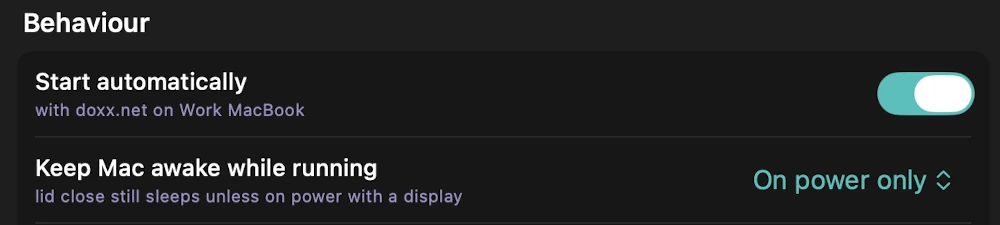
When the workshop is over
- Revoke your token in the portal under AccountAuth Tokens. Claude deletes its copy at the end of setup, but only you can revoke it.
- Before you delete the MPS, ask Claude to remove the firewall rule it added. It needs a new token for that. Deleting the MPS in the app doesn't remove the rule.
- To delete the MPS, use Delete MPS at the bottom of its page.
Part 4 of 4
Submit your build
When your site works, submit it by 8:25pm. Submitting enters you in the Mac mini raffle.
Check that your site opens:
https://plus your MPS's full name.- Open the submission form: TBD Link to the submission form
- Fill it in and send it.
Any time
Remove the "not private" warning
doxx.net sites use certificates from doxx.net's own root. Each device has to trust that root once before browsers stop warning. Do it on every device you use to visit doxx.net sites, including your own Mac, so you can open other participants' sites too. Don't click past the warning. Do these steps instead, then reload.
-
Download the root and check it
cd ~/Downloads && curl -fsSLO https://a0x13.doxx.net/assets/doxx-root-ca.crt && openssl x509 -in doxx-root-ca.crt -noout -fingerprint -sha256
The fingerprint must read exactly:
9F:3B:7D:A4:E5:1B:A1:15:ED:80:14:5B:E7:8F:9A:F1:43:54:53:FF:40:CA:34:0F:76:4D:2A:82:AD:63:3F:BA
-
Trust it
If the fingerprint matches, run this. It asks for your Mac's password.
sudo security add-trusted-cert -d -r trustRoot -k /Library/Keychains/System.keychain ~/Downloads/doxx-root-ca.crt
-
Your phone and other browsers
- iPhone: open the root's link in Safari and install it under SettingsGeneralVPN & Device Management. Then turn it on under SettingsGeneralAboutCertificate Trust Settings.
- Android: SettingsSecurityEncryption & credentialsInstall a certificateCA certificate. Menu names vary by phone.
- Firefox keeps its own list: SettingsPrivacy & SecurityCertificatesView CertificatesImport.
- Windows:
certutil -addstore root doxx-root-ca.crt - Debian or Ubuntu:
sudo cp doxx-root-ca.crt /usr/local/share/ca-certificates/ && sudo update-ca-certificates --fresh
Restart the browser afterwards. The root only works for doxx.net names, so it can't be used to fake sites like google.com.
Any time
If something goes wrong
Find what you see in the left column. Need help in the room? Raise your hand. Organizers are wearing a doxx.net T-shirt.
| You see | What to do |
|---|---|
| Another participant's site won't open | Connect to doxx.net in the app first. Sites on an MPS only open while you're connected to doxx.net. |
| "Your connection isn't private" | Don't click through the warning. It means your device doesn't trust the doxx.net root yet, so your browser can't confirm it reached the right server. Trust the root first, then reload. The warning should be gone. |
| Claude says it needs an Apple silicon Mac | Intel Macs can't run an MPS yet. Ask an organizer. |
claude: command not found | Open a new Terminal window with Cmd+N and try again. If it still isn't found, Claude Code isn't installed on this Mac: ask an organizer. |
| The token command says "Already exists" | A token was saved earlier. Tell Claude; it uses that one. |
| Claude says it can't find your MPS's name | Copy the name exactly from the top of the MPS's page in the app and send it again. |
| "Permission denied" when you paste the root password | The password didn't paste. Run the command again and paste the password again. |
| The page keeps loading for someone else | Tell Claude who tried and which option you chose. It checks the firewall rule. |
| Your site stopped working | Check that your Mac is awake, connected to doxx.net and running the app, and that the MPS shows as running. |